Integrazione con Spartoo

After having prepared all the incoming data, it will be necessary to configure the options for the generation of advertisements, available in the menu:

Marketplace --> Spartoo --> Listing generation configuration

To add a configuration click on Add.
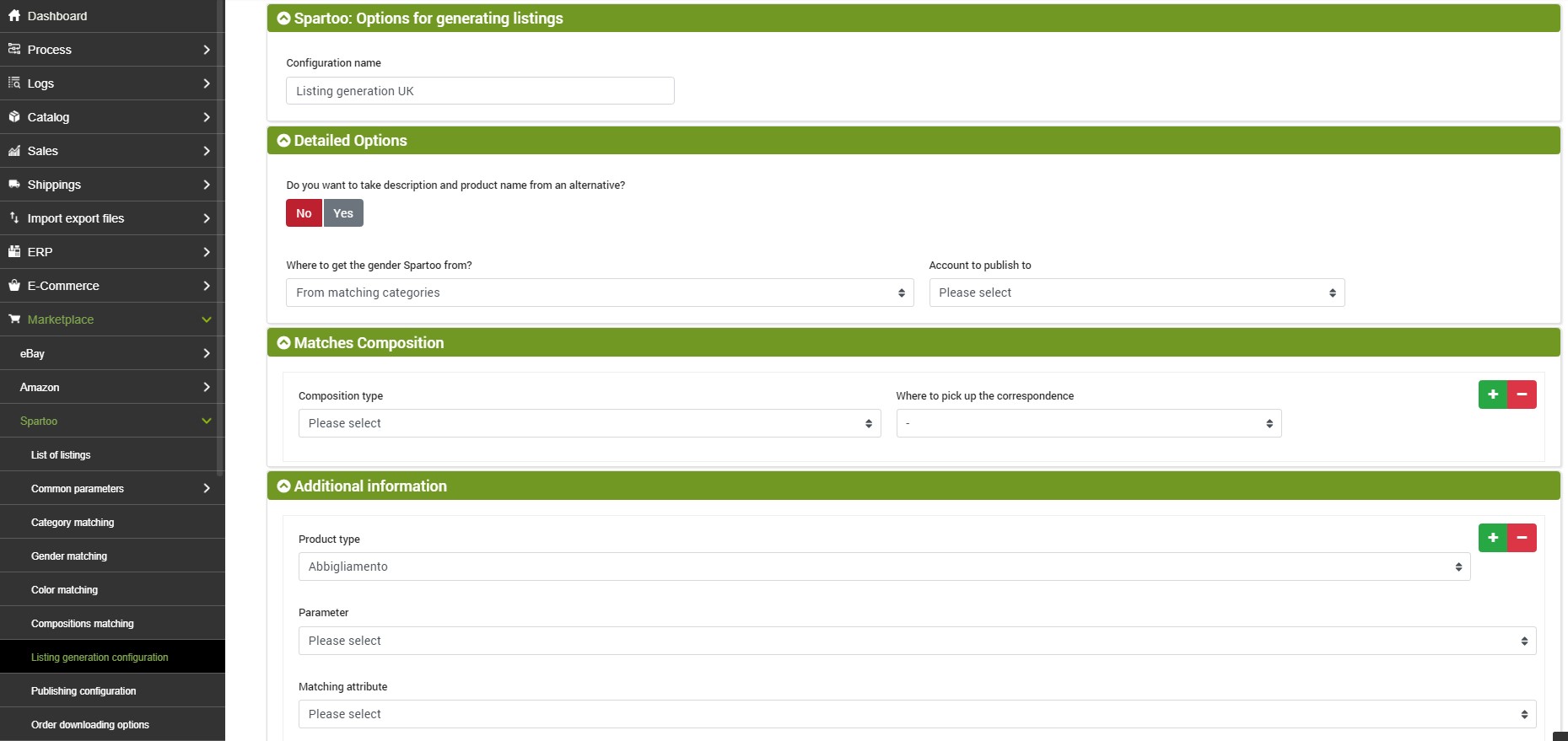
thumb spartoo listing generation options 1

Fill in the Name field and click on SAVE AND CONTINUE to access the additional configuration fields.

  • Do you want to take description and product name from an alternative? - it is possible to choose whether to take the information from an alternative description or not. By selecting Yes, you will have access to an additional field to specify which alternative description to consider
  • Where to get the gender Spartoo from? - select whether to consider gender from category match or gender match
  • Account to publish to: select the Spartoo account on which you want to publish the listings from the drop-down menu

The following sections contain the fields that determine the listing generation parameters according to Spartoo standards:

  • Matches Composition: if present, it is possible to indicate the attributes that contain the values related to the composition of the product (materials) to associate them with the standard ones of Spartoo. You need to specify where to get the correspondence (if directly from an attribute, from a free field or from the short description). To add more attributes just click on the "add group" button and repeat the previous operations by associating other compositions. For example, if you have an attribute indicating the composition of the Upper, the fields will be filled in as follows:
    Composition type: Upper

    • Composition type: Upper
    • Where to pick up the correspondence: Attribute
    • Attribute: select the attribute on bindCommerce that contains the values relating to the composition of the upper
  • Aditional information: with this function it is possible to match, where present, other product parameters with those of Spartoo. It will be sufficient to choose the type of product to unlock the additional parameters present on Spartoo and finally make it match our attribute.
  • Images: asks us to specify where to get the main image of the product, whether from the main image or from one loaded in the alternative. Finally it allows us to choose whether to add the first 8 images of the gallery as additional or not.
  • Options on the structure measures / sizes / colors: here it is necessary to specify the attribute that identifies the size, and whether the color attribute is combined with the parent products or variants. Furthermore, a scale conversion can be performed or not. By choosing Yes two other fields will appear:
    1. Where is the product scale located? This field allows us to indicate where to take the scale we need (if it is the same for all products belonging to a specific pre-existing scale, if it is found in the products table or in an attribute).
    2. Product scale type: here the type of product to which the scale refers must be indicated: shoes, clothing, general.

This topic will be further covered in a dedicated section of the guide Conversione taglie ed altre entità.

Click on SAVE AND CLOSE. To generate the listings it will be necessary to create the appropriate connector, as per the instructions in the guide Generazione delle inserzioni Spartoo.
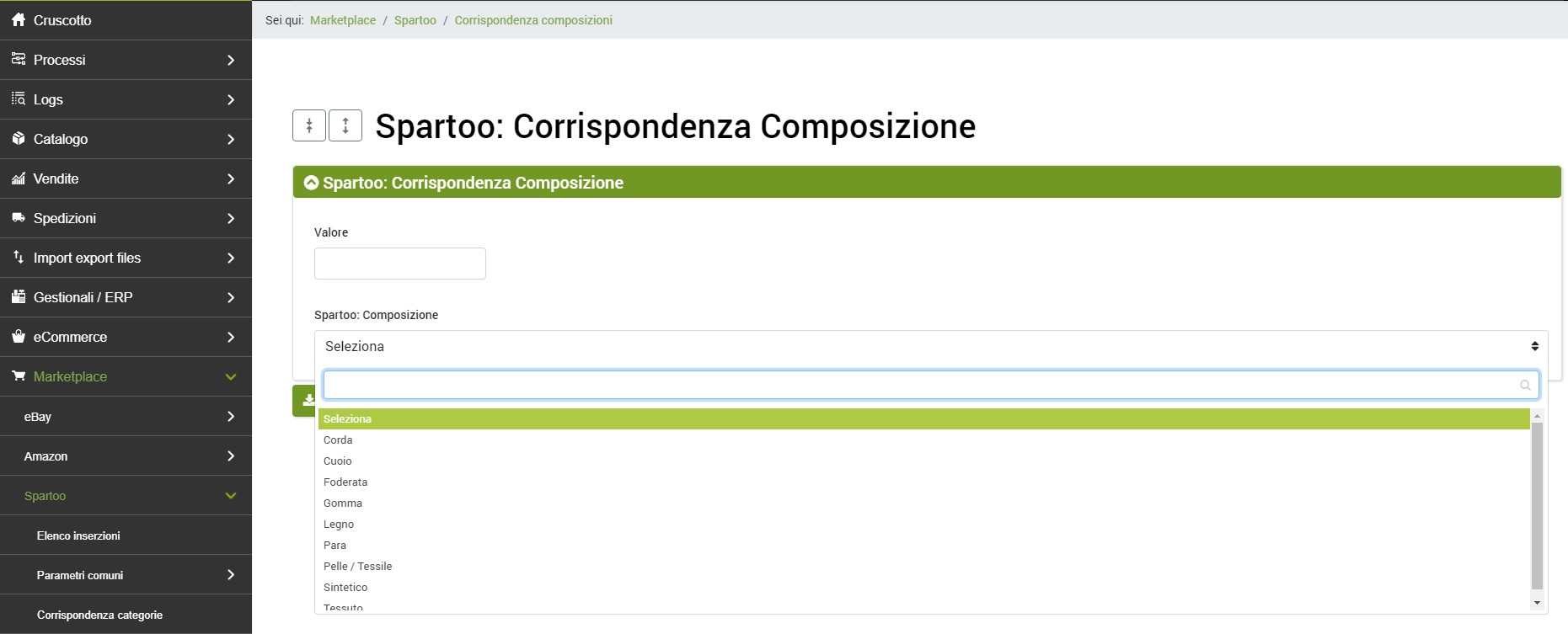
Durante la preparazione di un'inserzione Spartoo è necessario definire delle corrispondenze di composizione tra i valori presenti su bindCommerce e quelli standard del marketplace.

thumb spartoo corrispondenza composizione 1

La pagina ove è possibile definire queste corrispondenze è raggiungibile dal menù:

Marketplace >> Spartoo >> Corrispondenza composizione

Per aggiungere una corrispondenza cliccare su Aggiungi.

E' possibile prelevare la corrispondenza per la composizione da un attributo o da un campo specifico del prodotto. In entrambi i casi sarà necessario specificare il valore esatto indicato sul prodotto.

  • Valore: in questo campo è necessario inserire il valore desiderato per la composizione (ad esempio “pelle”)
  • Spartoo: Composizione - qui si indica la corrispondenza del nostro valore con quello standard presente in Spartoo

Infine cliccare su SALVA E CHIUDI.

I materiali di composizione standard accettati da Spartoo sono visualizzabili e raggiungibili dal menù:

Marketplace >> Spartoo >> Parametri comuni >> Composizioni

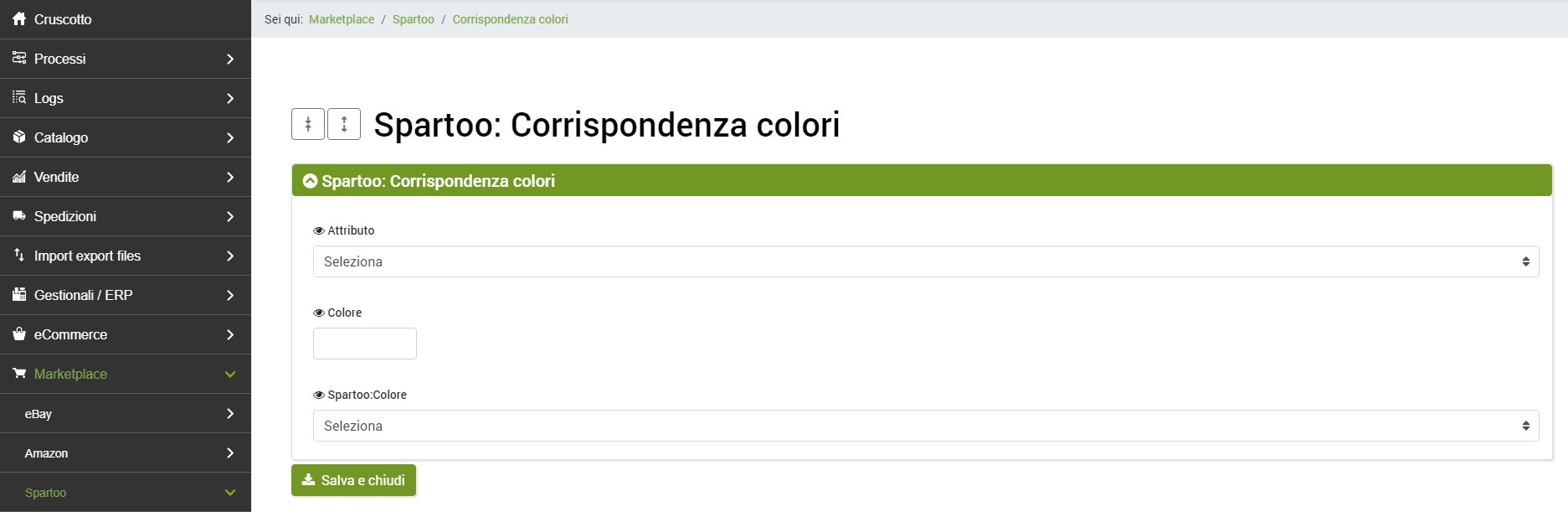
Durante la preparazione di un'inserzione Spartoo è necessario creare delle corrispondenze colore tra i valori presenti su bindCommerce e quelli standard presenti in Spartoo.

thumb spartoo corrispondenza colori 1

La pagina ove è possibile definire queste corrispondenze è raggiungibile dal menù:

Marketplace >> Spartoo >> Corrispondenza colori

Per aggiungere una corrispondenza cliccare su Aggiungi e compilare:

  • Attributo: permette di indicare l'attributo che contiene l'informazione sul colore.
  • Colore: in questo campo è necessario inserire il valore del nostro colore, ovvero quello che intendiamo associare ad un colore standard di Spartoo
  • Colore Spartoo: qui si indica la corrispondenza del nostro valore con quello standard presente in Spartoo.

Infine cliccare su SALVA E CHIUDI.

I colori di default previsti da Spartoo sono visualizzabili e raggiungibili dal menù:

Marketplace >> Spartoo >> Parametri comuni >> Colori

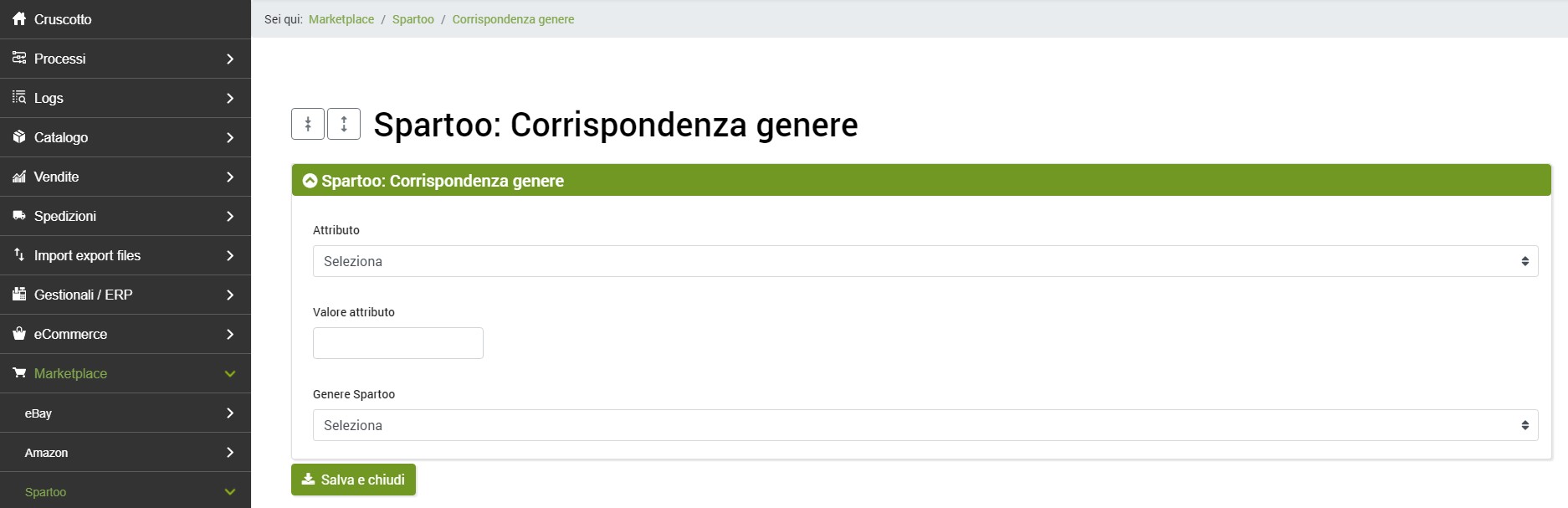
Durante la preparazione di un'inserzione Spartoo è necessario specificare il genere a cui l'inserzione si riferisce: Bambini, Donna, Ragazza, Ragazzo, Unisex, Uomo.

thumb spartoo corrispondenza genere 1

Questa operazione può essere svolta al momento della creazione di una nuova corrispondenza categoria, come da istruzioni riportate nell’apposita guida, o è possibile definirla nella corrispondenza genere raggiungibile dal menù:

Marketplace >> Spartoo >> Corrispondenza genere

Per aggiungere una corrispondenza nel menù Corrispondenza genere, cliccare su Aggiungi e compilare:

  • Attributo: permette di selezionare l’attributo specifico presente su bindCommerce valorizzato con il genere (uomo, donna, unisex, ecc…)
  • Valore attributo: in questo campo è necessario inserire il valore desiderato per il genere
  • Genere Spartoo: qui si indica la corrispondenza del nostro valore con quello standard presente in Spartoo

Infine cliccare su SALVA E CHIUDI.

I generi di default presenti su Spartoo sono visualizzabili e raggiungibili dal menù:

Marketplace >> Spartoo >> Parametri Comuni >> Generi

Durante la preparazione di un'inserzione Spartoo è necessario specificare la categoria o le categorie ove far confluire le inserzioni generate. L’associazione con le categorie Spartoo è obbligatoria per consentire la corretta pubblicazione delle inserzioni sul marketplace.

La pagina ove è possibile definire queste corrispondenze è raggiungibile dal menù:

Marketplace >> Spartoo >> Corrispondenza categorie

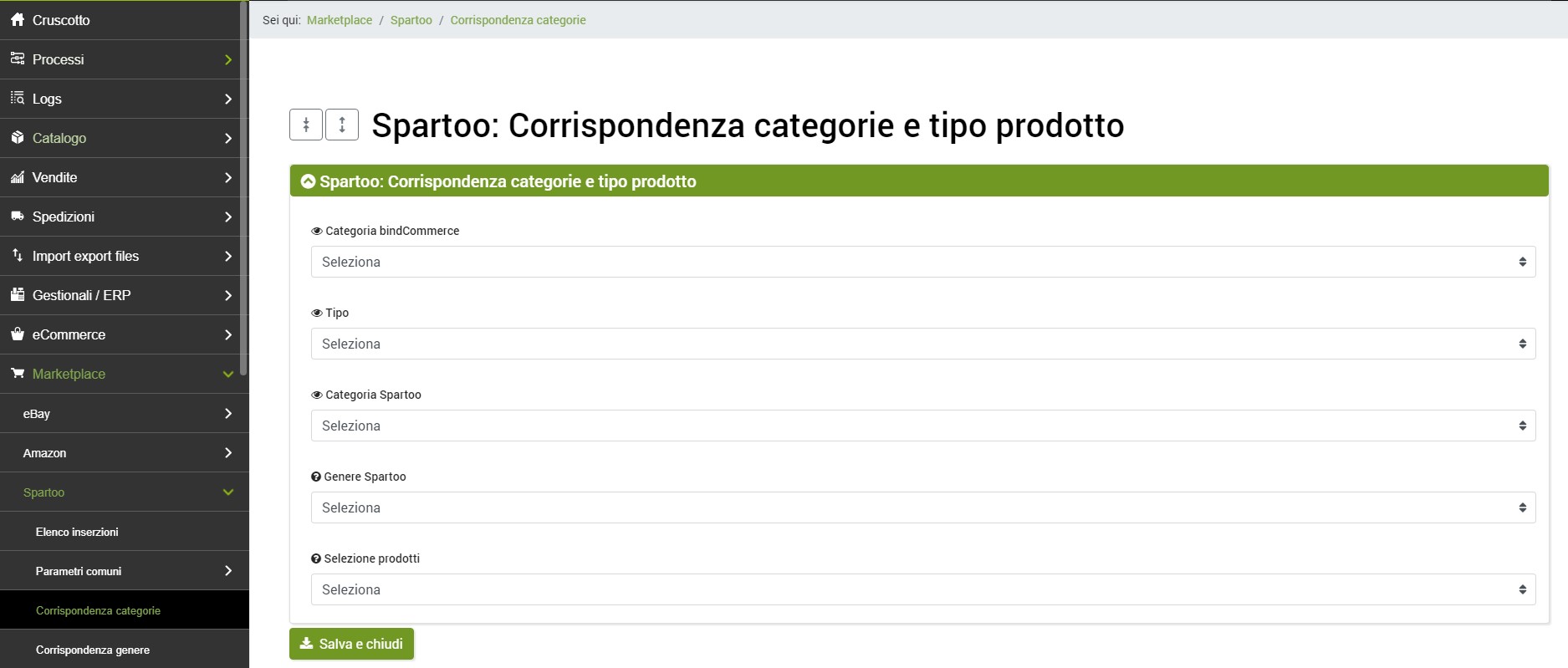
Per aggiungere una corrispondenza cliccare su Aggiungi e compilare le 2 categorie e il genere.

thumb spartoo corrispondenza categorie 1

Non è tuttavia obbligatorio specificare il genere in questa sezione. E' possibile definirlo al momento della creazione di una nuova corrispondenza genere (dal menù Marketplace >> Spartoo >> Corrispondenza genere)

E' possibile usare la funzione di autocompletamento, oppure cliccare sulla lente d'ingrandimento ed utilizzare la funzionalità di ricerca.
Infine salvare le modifiche.

Per visualizzare l’elenco delle categorie previste da Spartoo si può consultare la pagina

Marketplace >> Spartoo >> Parametri comuni >> Categorie